
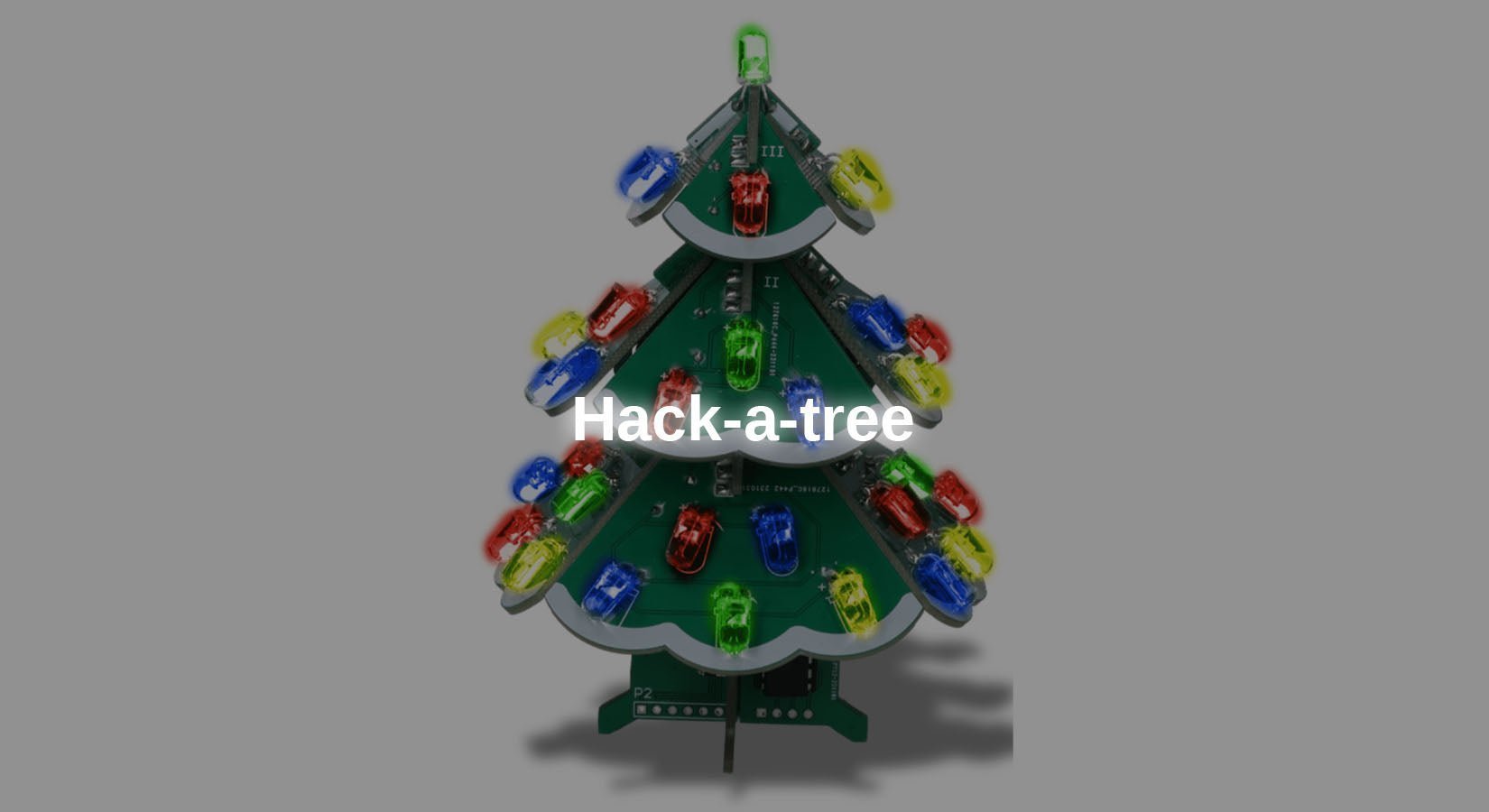
The 3D DIY Christmas tree soldering kit only has a few preset patterns with the pre-flashed microcontroller.
In this blog, you will learn how to program the microcontroller yourself so that the individual LEDs can be controlled to display your own patterns on the tree.
The blog refers exclusively to the 3D DIY Christmas Tree Soldering Kit.
1 Background information Processor
The processor used is an STC15W408 from the Chinese manufacturer STCmicro.
It is based on an (8-bit) 8051 CISC (Complex Instruction Set Computing) architecture. This was introduced by Intel back in 1980. For comparison, let's look at an ATmega328. This is based on the AVR RISC (Reduced Instruction Set Computing) architecture. The specific difference is the number of arithmetic operations that can be performed in one clock cycle. The 8051 processors normally require several clock cycles for a calculation operation, whereas the AVR counterpart only requires a single clock cycle for an operation. However, the STC15W408 is designed in such a way that there is no significant difference in performance between the two processors.
As mentioned above, the STC15W408 is an 8-bit processor, which means that a single arithmetic operation is only possible with values from 0-255. This would be a problem for complex projects, as it would drastically limit the speed for higher numbers. In this case, modern 32-bit processors such as the ESP32 should be used.
You may be wondering why an 8-bit processor such as the STC15W408 is used in this kit. The reason for this is that only individual IO pins are controlled here and no complex calculations are necessary for this.
This processor is therefore ideal for such an application, as it is easy to program.
Pinout

Figure 1: Pinout of the chip
When looking at the pinout of the circuit, it is noticeable that the IO pins are labeled P0.X to P5.X. The reason for this is that the processor has 5 IO registers, P0 to P5. The number after the register number represents the bit number in the register.

Figure 2: Pin register P1 (excerpt from the data sheet, chapter 4.7)
2 Connecting the LEDs
There are 37 RGB effect LEDs on the circuit boards, but not every LED can be switched on individually. The following image shows The associated groups are marked with numbers for easier identification.

Figure 3: Side view with numbered LEDs
Since this numbering of the LEDs is the same on each side of the tree, the four sides are designated with letters to distinguish them during pin mapping.

Figure 4: Top view with labeled sides
The following table lists all IO pins with the designation of the connected LED. The missing IO 1.0 to 1.5 are not connected to the LED.
| 1.6 | A2 | 3.0 | B1 |
| 1.7 | A1 | 3.1 | B2 |
| 2.0 | D3 | 3.2 | B3 |
| 2.1 | D4 | 3.3 | B4 |
| 2.2 | D5 + above | 3.4 | B5 |
| 2.3 | A5 | 3.5 | C5 |
| 2.4 | A4 | 3.6 | C4 |
| 2.5 | A3 | 3.7 | C3 |
| 2.6 | D2 | 5.4 | C2 |
| 2.7 | D1 | 5.5 | C1 |
Reset circuit
In order for the chip to be flashed, it must be be disconnected from the power supply for a short time and then reconnected. Therefore, a small transistor circuit must be built for the FT232, which is connected to the DTR pin.
To build the programmer, you will need:
FT232 serial converter
Patch board min. 8x13 (e.g., from the PCB range)
Cables (e.g. silicone cable assortment)
Resistors 470Ω, 10kΩ, 100kΩ (e.g. from the resistor assortment)
Yellow LED (e.g., from the LED range)
NPN transistor BC547 (e.g. ->Amazon)
(optional: pogopins or F2M jumpers for connection to the UART pins of the tree)

Figure 5: Programmer circuit on breadboard

Build the circuit as shown above. It is recommended not to solder the right-hand socket strip directly onto the PCB if you are not using pogo pins, as this will prevent the programmer from being plugged in. Alternatively, it is recommended to connect the socket strip to the PCB using cables.
Once the programmer has been assembled correctly according to the circuit diagram, you can connect the kit using pogo pins or a pin header on the kit. To do this, connect the board to the four connections under the chip as follows.
P31 (TX) = RX (FT232)
P30 (RX) = TX (FT232)
3V3= VCC (FT232)
GND= Emitter Transistor
Make sure that the FT232 jumper is set to 3V3, as too high a logic level could damage the chip.
Software
The STC15W408 is not compatible with the Arduino IDE. A good alternative to the familiar Arduino IDE is the PlatformIO plugin for VS Code. It already includes over 1000 different boards, including STC chips.
First, install the Visual Studio Code IDE. You can download the installation file here here.
Once the IDE has been successfully installed and opened, go to the extensions. You can open these either via the left sidebar (see red mark in the illustration) or via the keyboard shortcut Ctrl+Shift+X.

Figure 6: Extensions menu in the left sidebar
Search for the Platform IO plugin here and install it.

Figure 7: View in Extension Manager
Next, open the PlatformIO home page (sidebar > Platform IO > Quick Access > PIO Home > Open) and click on "New Project."

Figure 8: Project configuration
In this window, you can now select a name for the project and the board. As shown above, you must select the STC15W408AS . Finally, confirm the project configuration by clicking Finish button.
Once you have created the project, all that remains is to add the code. To keep the file with the relevant code as clear as possible, an external header file (.h) is used with all the necessary register declarations for the chip.
You can find a file suitable for the chip here from Vincent Defert on GitHub.
Once the file has been downloaded, you can import it into VSCode in the directory src in VSCode. Create a new file there with the name main.c, which will later contain the program to be executed.
Test code
As a first test, all LEDs should be switched on and then switched off again after a delay.
Now load the following program onto the microcontroller:
| #include |
Alternatively, the file here .
Explanation:
(1) At the beginning, the header file with the register definitions is included.
(2) Next, macros are defined for the two LED states. This improves clarity in the routine section. Normally, an IO in the HIGH state switches on a connected LED, because the anode (+) of the LED is usually connected to the IO. On the PCB, however, the cathode (-) of the LED is connected to the IO, which means that it is only switched on when in a LOW state.
Since an LED (light-emitting diode) is, as the name suggests, a diode, it is blocked when the IO is in a HIGH state and therefore does not light up.
(3) Since the STC15W408 does not automatically include standard Arduino methods such as delay(), the delay() function is implemented here.
(4) The internal counting loop takes approximately one millisecond to complete. This loop is then run through exactly the number of milliseconds that were passed to the function as parameters. This allows a simple delay to be implemented, but it depends on the frequency of the processor clock and may also show deviations for longer delays.
(5) The following register assignment sets the IO pins to push-pull mode. This enables operation with high current at the IO pin. For more information, see the chip data sheet in sections 4.9.2 & 4.7.
(5) Here, the IO registers are set to the HIGH value so that all LEDs are switched off at the start.(6) Here, the IO registers are set to the value HIGH so that all LEDs are switched off at the start.
(7) In the loop, the IO pins/LEDs are switched on and off with a pause of two seconds.
(8) In addition to setting an entire IO register, individual bits in the register can also be set; these correspond to the individual IO pins.
Uploading is done simply by clicking on the arrow in the bottom bar.
After successful upload, the following should be displayed in the terminal:

Figure 9: Output in the VS Code terminal
Note: During the first upload, the stcgal tool automatically installed, which is required for flashing the chip.
Conclusion
After reading this blog post, you can now program the STC15W408, which is used in the 3D Christmas Tree kit, yourself and display your own patterns on it.
Feel free to experiment with the countless patterns that are now possible with the kit.
Have fun building it :)
The following relevant sources were used to create this blog:
https://www.stcmicro.com/datasheet/STC15F2K60S2-en.pdf
https://de.wikipedia.org/wiki/Intel_MCS-51
https://de.wikipedia.org/wiki/Reduced_Instruction_Set_Computer
https://de.wikipedia.org/wiki/Complex_Instruction_Set_Computer
These can be read if you are interested in learning more about the basics. The GitHub repositories of the two open-source projects stcgal and stc-mcu-open-source are also interesting.




6 comments
Bastian Brumbi
Hallo zusammen!
Das Fritzing Diagramm habe ich um einen technischen Schaltplan ergänzt.
Der Lautsprecher kann leider aufgrund eines Layout-Fehlers nicht in Betrieb genommen werden. Bei Bedarf können Sie einen passiven Piezo über einen IO anschließen.
@BirgerT Die Leuchtdioden verfügen über einen internen Chip, welcher die Farbabfolge regelt. Dieser kann nicht angesteuert werden!
Birger T
Und wie bekommt man wieder den ursprünglichen Code auf den Controller?
Wie funktionieren die 2-Draht RGB-LEDs – Datenblatt, Type?
Wie (wenn überhaupt) werden die Melodien erzeugt?
Bernd-Steffen Großmann
Ich wiederhole meine Frage nach einem Schaltplan für den Programmerzusatz, da ich das ( fehlerhafte?) Realschaltbild nicht verstehe. Außerdem die Frage wie man den eingebauten Lautsprecher aktivieren kann?
Bernd-Steffen
Hallo, in dem Weihnachtsbaum befindet sich auch ein Lautsprecher. Wie kann der zum Einsatz gebracht werden?
Mfg
Bernd-Steffen Großmann
Hallo Bastian, aus der Fritzing-Anordnung werde ich nicht schlau, wie die Transisorschaltung mit dem Programmer verbunden wird! Wäre es möglich, einen ordinären Schaltplan dazu zu veröffentlichen, damit es auch Old-School-Hobbyisten verstehen?
Peter
The Description is wrong! The ATmega328 is NOT based on the ARM Architecture! It has its own proprietary CPU Architecture named AVR! However it is also an RISC architecture as arm but that is the only common part.