
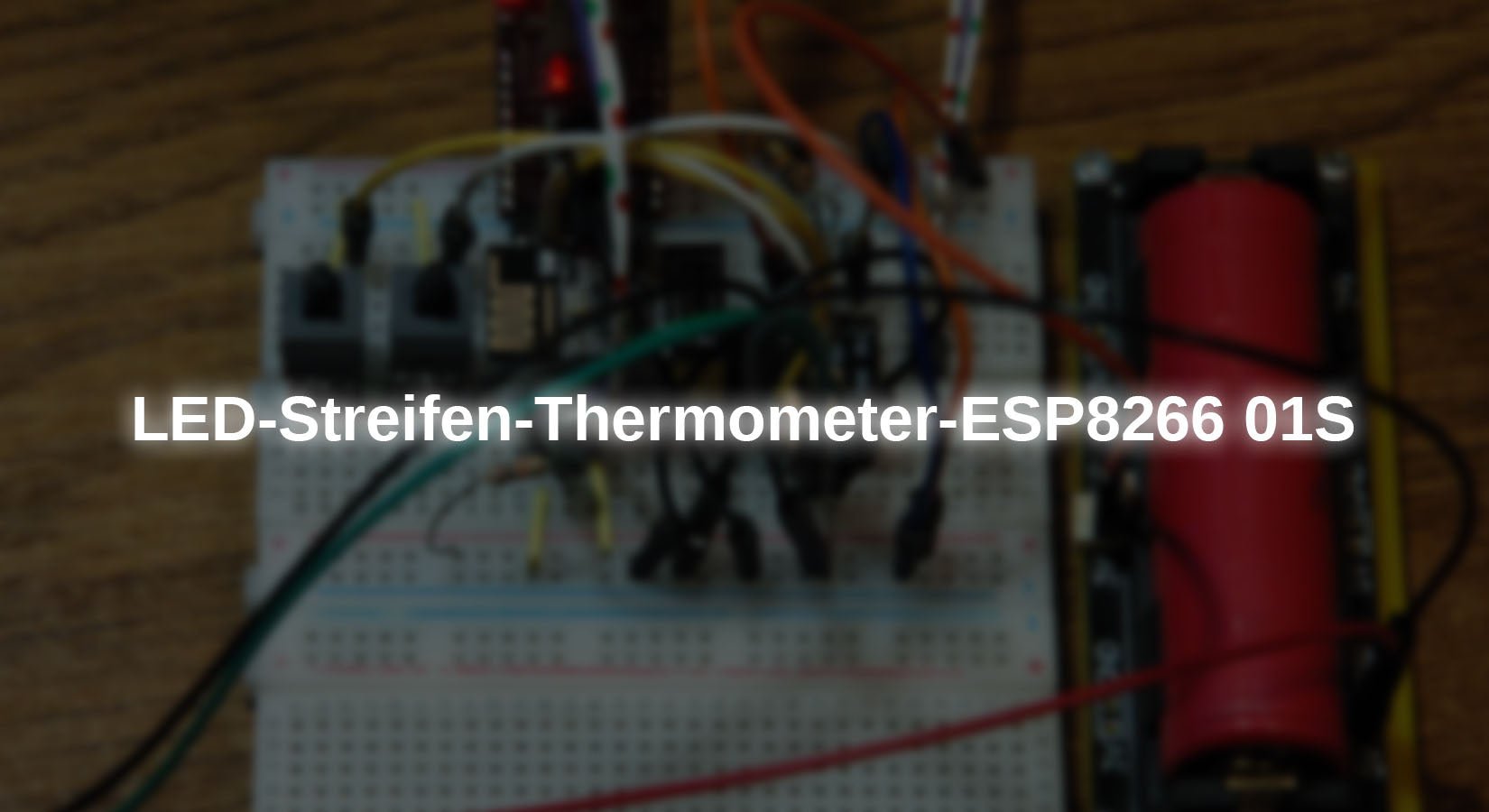
While working on the LED strip roulette, I had an idea for another use for these universal lighting fixtures. In no time at all, I had turned a 1 m long LED strip with 60 Neopixel LEDs into a thermometer. The design is so simple that the project is very well suited for beginners in the field of microcontrollers – in the simplest case, only four parts are required. I will show you how to do this in this new episode from the series.
MicroPython on the ESP8266, ESP32, and Raspberry Pi Pico
today
The LED strip thermometer
The program for the thermometer is, of course, written in MicroPython and designed to run on all of the controllers mentioned in the headline without modification. With two additional buttons, which are only needed for burning the firmware, even the smallest member of the ESP8266 family, the ESP8266-01S, can serve as a control unit for the LED strip. The operating program for the thermometer is designed for this controller with its two GPIO pins – GPIO0 controls the LEDs of the strip, while GPIO2 implements the one-wire bus connection to the DS18B20. Because the ESP8266-01S board does not contain a voltage converter from 5V to 3.3V, we need an external circuit for this. The connection to the USB must also be provided by an external USB-TTL adapter. This covers all of the hardware.
Hardware
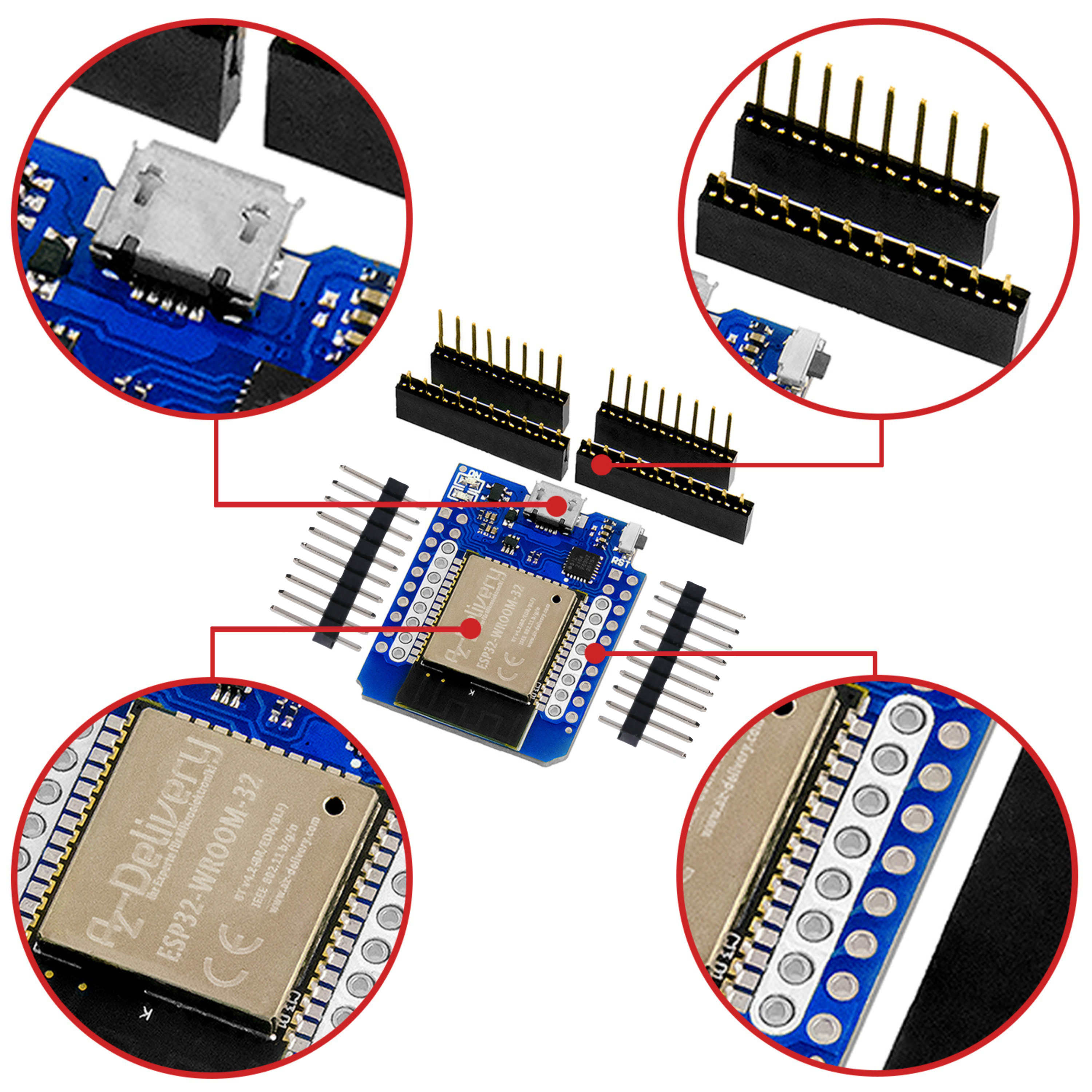
| 1 | ESP32 Dev Kit C V4 solderless or ESP32 NodeMCU Module WLAN WiFi Development Board with CP2102 or ESP8266 01S esp-01S WLAN WiFi module with breadboard adapter or D1 Mini V3 NodeMCU with ESP8266-12F or NodeMCU Lua Lolin V3 Module ESP8266 ESP-12F WIFI Wifi Development Board with CH340 or NodeMCU Lua Amica Module V2 ESP8266 ESP-12F WIFI Wifi Development Board with CP2102 or D1 Mini V4 NodeMCU ESP8266EX WLAN module with USB-C connection compatible with Arduino or |
| 1 | |
| 1 | DS18B20 digital temperature sensor TO92 or 1 m cable DS18B20 digital stainless steel temperature sensor |
| 1 | Resistance 10kΩ |
| 2 | Optional for ESP8266-01S Buttons, for example KY-004 push button module |
| 1 | When using an ESP8266-01S |
| 1 | When using an ESP8266-01S |
| 1 |
As the following circuit diagrams show, the setup is easiest to accomplish with an ESP32 or ESP8266. With the ESP8266-01S, you need a converter from 5V to 3.3V and also to Burning the firmware requires two buttons because the small board does not have an automatic burning function like its larger counterparts, nor does it have a voltage regulator on board. However, this means that you can save on the pull-up resistor on the DS18B20 signal line. A USB-to-TTL adapter is also required for connection to the USB, but this is only needed during the development of the program and afterwards for burning the operating program ledstrip_thermo.py.
The LED strip should be powered by a 5V plug-in power supply for long-term operation; the maximum current consumption of the controller and LEDs is approximately 80 to 120 mA. Some of the ESP8266 boards accept external voltages via the Vin connection, but do not supply the 5V from the USB connection there. The ESP32 boards and the Raspberry Pi Pico , this is already possible. With these controllers, the LED strip can be powered directly from the USB port. If you want to operate the finished device independently of a PC, you will need to use a power supply, unless you use a Li-ion battery in conjunction with a suitable battery holder. This also provides 5V and 3.3V witha load capacity of 1A each. The circuit runs for approx. 24 hours on a single charge.
Here are the circuit diagrams.

Figure 1: LED thermometer ESP8266 D1 mini

Figure 2: LED thermometer ESP32

Figure 3: LED thermometer ESP8266-01S

Figure 4: LED thermometer – Raspi Pi Pico
The circuit diagrams also reflect the type of setup. The setup with the ESP8266-01S is somewhat chaotic due to the additional components. Using a battery holder with a Li battery eliminates the need for a voltage regulator from 5V to 3.3V. All ESPs have firmware 19.1.

Figure 5: Setup with ESP8266-01S
This is very clear with an ESP8266 NodeMcu V3.

Figure 6: Setup with ESP8266 NodeMcu V3
The software
For flashing and programming the ESP32:
Thonny or
For displaying bus signals
SALEAE – Logic Analyzer Software (64-bit) for Windows 8, 10, 11
Firmware used for the ESP32:
Firmware used for the ESP8266:
ESP8266_GENERIC-FLASH_1M-20220618-v1.19.1.bin
Firmware used for the Raspberry Pi Pico (W):
RPI_PICO_W-20240602-v1.23.0.uf2
The MicroPython programs for the project:
ledstrip_thermo.py: Operating program for the thermometer
MicroPython - Language - Modules and programs
Detailed instructions for installing Thonny can be found here (English version). It also includes a description of how to install the MicroPython firmware (as of January 25, 2024) on the ESP chip burned. You can find out how to get the Raspberry Pi Pico up and running here.
MicroPython is an interpreted language. The main difference to the Arduino IDE, where you always and exclusively flash entire programs, is that you only need to flash the MicroPython firmware onto the ESP32 once at the beginning so that the controller understands MicroPython instructions. You can use Thonny, µPyCraft, or esptool.py for this. I have described the process for Thonny here.
Once the firmware is flashed, you can casually chat with your controller, test individual commands, and see the response immediately without having to compile and transfer an entire program first. That's exactly what bothers me about the Arduino IDE. You save a tremendous amount of time when you can test the syntax and hardware in advance, try out and refine functions and entire program sections via the command line before you start knitting a program out of them. For this purpose, I like to create small test programs again and again. They summarize recurring commands as a kind of macro. Entire applications can then be developed from such program fragments.
Autostart
If you want the program to start automatically when the controller is switched on, copy the program text into a newly created blank file. Save this file as main.py in the workspace and upload it to the ESP chip. The program will start automatically the next time the device is reset or switched on.
Test programs
Programs are started manually from the current editor window in the Thonny IDE by pressing the F5 key. This is faster than clicking the Start button or using the Run menu. Only the modules used in the program need to be in the ESP32's flash memory.
Back to Arduino IDE in the meantime?
If you want to use the controller with the Arduino IDE again later, simply flash the program in the usual way. However, the ESP32/ESP8266 will then have forgotten that it ever spoke MicroPython. Conversely, any Espressif chip that contains a compiled program from the Arduino IDE or the AT firmware or LUA or ... can easily be equipped with the MicroPython firmware. The process is always as described here.
The operating program
The program is designed to be as clear as the superstructures. By By selecting GPIO2 as the one-wire bus connection and GPIO0 as the control bus line for the Neopixel strip, the program runs on all of the above-mentioned controllers without modification. The individual functional units are defined in the form of functions.
For the ESP8266 family, I have often noticed that the controller crashes shortly after startup. This seems to be because it tries to establish contact with an access point via the WiFi unit. As a workaround, I switch off web-REPL immediately after flashing new firmware. This has significantly stabilized the startup behavior.
The GPIOs on the 8266s also have LUA designations. A translation table is quite useful in this context when programming, especially with regard to various voltage levels that must be maintained during bootup to ensure that the process runs without errors. Let's now discuss the program parts and their functions.
# ledstrip_thermo.py
# After flashing the firmware on the ESP8266:
# import webrepl_setup
## > d for disable
## Then RST; restart!
# Pintranslator for ESP8266 boards
#LUA pins D0 D1 D2 D3 D4 D5 D6 D7 D8 RX TX
#ESP8266 Pins 16 5 4 0 2 14 12 13 15 3 1
#Attention hi sc sd hihi lo hi hi
# used DSLE
from machine import Pin
from time import sleep
from onewire import OneWire
from ds18x20 import DS18X20
from neopixel import NeoPixel
from sys import exit, platform
For the import operation, we only use modules that are permanently integrated into the MicroPython kernel. We want to address GPIO pins, let the controller slumber a little in between, we need the one-wire bus for the DS18B20 temperature sensor, and NeoPixel provides us with an array for the color information and the write() function, which we use to send the buffer content via the Neopixel bus.
dsPin=Pin(2) # ESP8266 (D4)
ds = DS18X20(OneWire(dsPin))
device = ds.scan()[0]
ds.convert_temp()
sleep(0.750)
print(device,ds.read_temp(device))
GPIO2 will be our one-wire bus connection. OneWire(dsPin) creates the bus object, which we immediately pass to the constructor of the DS18X20 class. The scan() function of the DS18X20 object searches for devices on the bus and will hopefully find the one we want, namely our DS18B20. The ROM identifier of the component is a bytearray object with eight values, which is covered in a list together with any other identifiers.
>>> ds.scan()
[bytearray(b'(\xffd\x0ei\x0f\x01>')]
Since we only have one DS18B20 on the bus, we pick the 0th element from the list.
>>> ds.scan()[0]
bytearray(b'(\xffd\x0ei\x0f\x01>')
The identifier is needed to address the individual chips on the bus separately. convert_temp() instructs all chips to start a measurement. After at least 750 ms, we can retrieve the result using the read_temp() function. The respective identifier of the component must be passed. We have stored it in device.
led=Pin(0,Pin.OUT,value =0) # ESP8266 (D3)
numOfPix=60
np=NeoPixel(led,numOfPix)
pos0 = 20
maxTemp=39
minTemp=-20
temp=[0 for i in range(60)]
We define the Neopixel bus connection GPIO0 as an output and set the level to 0. The bus should serve numOfPix = 60 LEDs. The constructor of the NeoPixel class creates the object np for us. The LED with the number 20 shows us the zero point of the thermometer scale. Our scale thus ranges from -20°C (LED number 0) to 39°C (LED number 59). In the temp list, we use a list comprehension to create 60 elements that initially simply have the value 0. The list will later contain the color representation of the scale.
from=(0.0,0)
green=(0,64,0)
dark blue=(0,0,4)
light blue=(0,0,128)
dark red=(4,0,0)
light red=(128,0,0)
magenta =(2,0,2)
statered=0
stateblue=0
stategreen=0
The color values for the Neopixel LEDs are specified bytriples. The three values represent the red, green, and blue components.
The LEDs above the current temperature display are cleared (off=(0,0,0)), and the zero point is represented by a bright green. The tens digits in the positive range glow in bright red, and in the negative range in bright blue. The intermediate values are displayed in a darker color. For easier orientation, I let the fives glow in a darker magenta. At temperatures above 40°C, the top LED should flash; at temperatures below -20°C, the bottom LED flashes. The zero point is always illuminated. In order to be able to distinguish -1°C from 0°C, the zero degree LED flashes in the latter case. I use the three state variables to control these states.
def setScale():
for i in range(20):
temp[i]=dark blue
for i in (21,60):
temp[i]=dark red
for i in [0,10]:
temp[i]=light blue
for i in [30,40,50]:
temp[i]=light red
for i in range(5,60,10):
temp[i]=magenta
temp[20]=green
The setScale() function fills the temp list with the color values. The negative range is initially colored dark blue throughout, and the positive range dark red. The range limits and list values in the for statements are the position numbers of the LEDs in the strip. The 10-step increments are then overwritten in light blue and light red. I overwrite the 5-step increments starting with LED number 5 in steps of ten up to number 55 in dark magenta. Finally, I set position 20 to green.
def fillAndShow(temperature):
t=min(temperature,maxTemp)
t=max(minTemp,t)
maxpix = int(t) + pos0
for i in range(maxpix + 1):
np[i]=temp [i]
for i in range(maxpix + 1,numOfPix):
np[i]=from
if t < 0:
np[pos0]=green
np.write()
The fillAndShow() function is essentially the core of the program, the temperature display. It transfers color values from the temp list to the buffer memory np of the NeoPixel object.
Background info:
The buffer memory of the NeoPixel object is actually a byte array with the identifier buf. In our case, it can be referenced with np.buf. The content consists of consecutive groups of three for each LED. If np[2]=(1,2,3) the color value for LED number 2 as a tuple, then the hidden function __setitem__() converts the tuple into a sequence of bytes objects and writes the values to the byte array np.buf. If we look at the contents of np.buf, we see that the order of the bytes has been changed.
>>> np[2]=(1,2,3)
>>> np.buf
bytearray(b'\x00\x00\x80\x00\x00\x04\x02\x01\x03\x00\x00\x04\x00\x00\x04 …
The RGB values are converted as specified by the np.ORDER attribute.
>>> np.ORDER
(1, 0, 2, 3)
If we pass R=1, G=2, and B=3, the values end up as G, R, B in the buffer. With 3, a white value would be passed, but this is not supported by the LED type used.
But let's take a closer look at the fillAndShow() function. When called, the parameter temperature is passed the current temperature value, which must be within the permissible range so that the program is not terminated with an error. t=min(temperature,maxTemp) ensures that t does not exceed the maximum displayable temperature. min() returns the minimum of the values passed. t=max(minTemp,t) is responsible for ensuring compliance with the lower limit.
Now the number of the LED for the temperature in t must be determined. We take the integer part of the temperature value and level the zero point of the Celsius scale to position 20 of the LED chain. < span lang="EN" style="font-size: 10.0pt; font-family: 'Courier New'; mso-fareast-font-family: 'Times New Roman'; color: black;">maxpix = int(t) + pos0
Then we fill the buffer up to the calculated limit with the scale contents.
Then we fill the buffer up to the calculated limit with the scale contents.
for i in range(maxpix + 1):
[i]=temp[i]
We set the remaining LEDs above to off=0,0,0.
for i in range(maxpix + 1,numOfPix):
np[i]=from
If the temperature is below zero, we also set the zero point. Then we send the buffer content to the display.
if t < 0:
np[pos0]=green
np.write()
We can switch off the entire LED strip with the clearStrip() function. We write to the buffer with loud (0,0,0) tuples.
def clearStrip():
for i in range(numOfPix):
np[i]=from
np.write()
binkRed(), blinkBlue(), and blinkGreen(). They all have the same structure. Let's take a closer look at blinkRed() as an example.
def blinkRed():
global statered
if statered == 1:
np[numOfPix-1]=from
np.write()
statered = 0
else:
np[numOfPix-1]=dark red
np.write()
statered = 1
The value of the variable statered is changed in the procedure and must be available again the next
The value of the variable statered is changed in the procedure and must be available again the next time it is called. One way to achieve this is to use global variables. Without the global declaration, the variable would disappear into thin air when leaving the function. Another way to make the variable static would be to use a closure. Follow the link if you want to learn more about this. For beginners, we will stick with the simpler first solution.
If statered is equal to 1, the top LED must be turned off. numOfPix has the value 60. The top LED therefore has the number 59, because the numbering starts at 0. We send the status of (all!) LEDs to the strip using np.write() and set statered to 0.
The next call will run through the else branch. We set the content for the top LED to dark red, send the buffer, and set statered to 1.
We treat the bottom LED (number 0) and the zero point LED at position pos0 = 20 in the same way.
def blinkBlue():
global stateblue
if stateblue == 1:
np[0]=from
np.write()
stateblue = 0
else:
np[0]=light blue
np.write()
stateblue = 1
def blinkGreen():
global stategreen
if stategreen == 1:
np[pos0]=from
np.write()
stategreen = 0
else:
np[pos0]=green
np.write()
stategreen = 1
By using functions, we create an overview in the main program, which thus comprises just 15 lines.
We generate the thermometer scale and clear the LEDs, then we enter the main loop.
setScale()
clearStrip()
The measurement of the current temperature value is triggered. The controller counts sheep for one second and then determines the integer value of the temperature read in, rounding up.
while 1:
ds.convert_temp()
sleep(1)
t =int(ds.read_temp(device) + 0.5)
)print(t,"C")
fillAndShow(t)
if t < minTemp:
blinkBlue()
if t > maxTemp:
blinkRed()
if t == 0:
blinkGreen()
We can delete the print command in production mode. fillAndShow() displays the temperature on the strip as described above. We use the if constructs to handle special cases.
Here is the complete listing of the program ledstrip_thermo.py:
# ledstrip_thermo.py
# After flashing the firmware on the ESP8266:
# import webrepl_setup
## > d for disable
## Then RST; restart!
# Pintranslator for ESP8266 boards
#LUA pins D0 D1 D2 D3 D4 D5 D6 D7 D8 RX TX
#ESP8266 Pins 16 5 4 0 2 14 12 13 153 1
#Attention hi sc sd hihi lo hi hi
# usedOLED DS LE
from machine import Pin
from time import sleep
from onewire import OneWire
from ds18x20 import DS18X20
from neopixel import NeoPixel
from sys import exit, platform
button=Pin(0,Pin.IN,Pin.PULL_UP)
dsPin=Pin(2) # ESP8266 (D4)
ds = DS18X20(OneWire(dsPin))
device = ds.scan()[0]ds.convert_temp()
sleep(0.750)
print(device,ds.read_temp(device))
led=Pin (0,Pin.OUT,value=0) # ESP8266 (D3)
numOfPix=60
np=NeoPixel(led,numOfPix)
pos0 = 20
maxTemp=39
=minTemp=-20
temp=[0 for i in range(60)]
from=(0,0,0)
green=(0,64,0)
dark blue=(0,0,4)
light blue=(0,0,128)
dark red=(4,0,0)
light red=(128,0,0 )
magenta=2,0,2)
statered=0
stateblue=0
stategreen=0
def setScale():
for i in range(20):
temp[i]=dark blue
for i in range(21,60):
temp[i]=dark red
for i in [0,10]:
temp[i]=light blue
for i in [30,40,50]:
temp[i]=light red
for i in range(5 ,60,10):
temp[i]=magenta
temp[20]=green
def fillAndShow(temperature):
t=min(temperature,maxTemp)
t=max(minTemp,t)
maxpix = int(t) + pos0
for i in range(maxpix + 1):
np[i]=temp[i]
for i in range(maxpix + 1,numOfPix):
np[i]=from
if t < 0:
np [pos0]=green
np.write()
def clearStrip():
for i in range(numOfPix): np[i]=from
np.write()
def blinkRed():
global statered
if statered ==1:
np[numOfPix-1]=off
np.write()
statered = 0
else:
np [numOfPix-1]=dark red
np.write()
statered = 1
def blinkBlue():
global stateblue
if stateblue == 1:
np[0]=from
np.write()
stateblue = 0
else:
np[0]=light blue
np.write()
stateblue = 1
def blinkGreen(): global stategreen
if stategreen == 1:
np[pos0]=from
np.write()
stategreen =0
else:
np[pos0]=green
np.write()
stategreen = 1
setScale ()
clearStrip()
while 1:
ds.convert_temp()
sleep(1)
t=int(ds.read_temp(device) + 0.5)
)print(t,"C")
fillAndShow(t)
if t < minTemp:
blinkBlue()
if t > maxTemp:
blinkRed()
if t == 0:
blinkGreen()
To be independent of the PC and USB, we can upload the program to the controller's flash memory under the name main.py. Now a 5V power supply is sufficient to automatically start the program the next time the system is restarted or after a reset.
This is what the zero mark looks like in operation.

Figure 7: Thermometer display from -6°C to 2°C
Outlook:
The color selection for the LEDs leaves us with a few options. For example, a second sensor for the outside temperature could be connected to the one-wire bus and the display could be switched every five seconds. Different colors for the areas make it easy to distinguish between outside and inside temperatures.
By using an SD card reader and an RTC, the measurements can be recorded with precise timing for later evaluation.
If we use the Wi-Fi capability of our controllers, the measurement data can also be easily transferred to a cell phone, tablet, or server.
Have fun with your further research, tinkering, and programming.




1 comment
DENISE
Bravo, superbe idée, je mets en oeuvre ce programme.
Et ensuite je vais plus loin: un BME280 et 3 rubans Led pour la Température, la Pression Atmosphérique et L’ Humidité.
Merci