
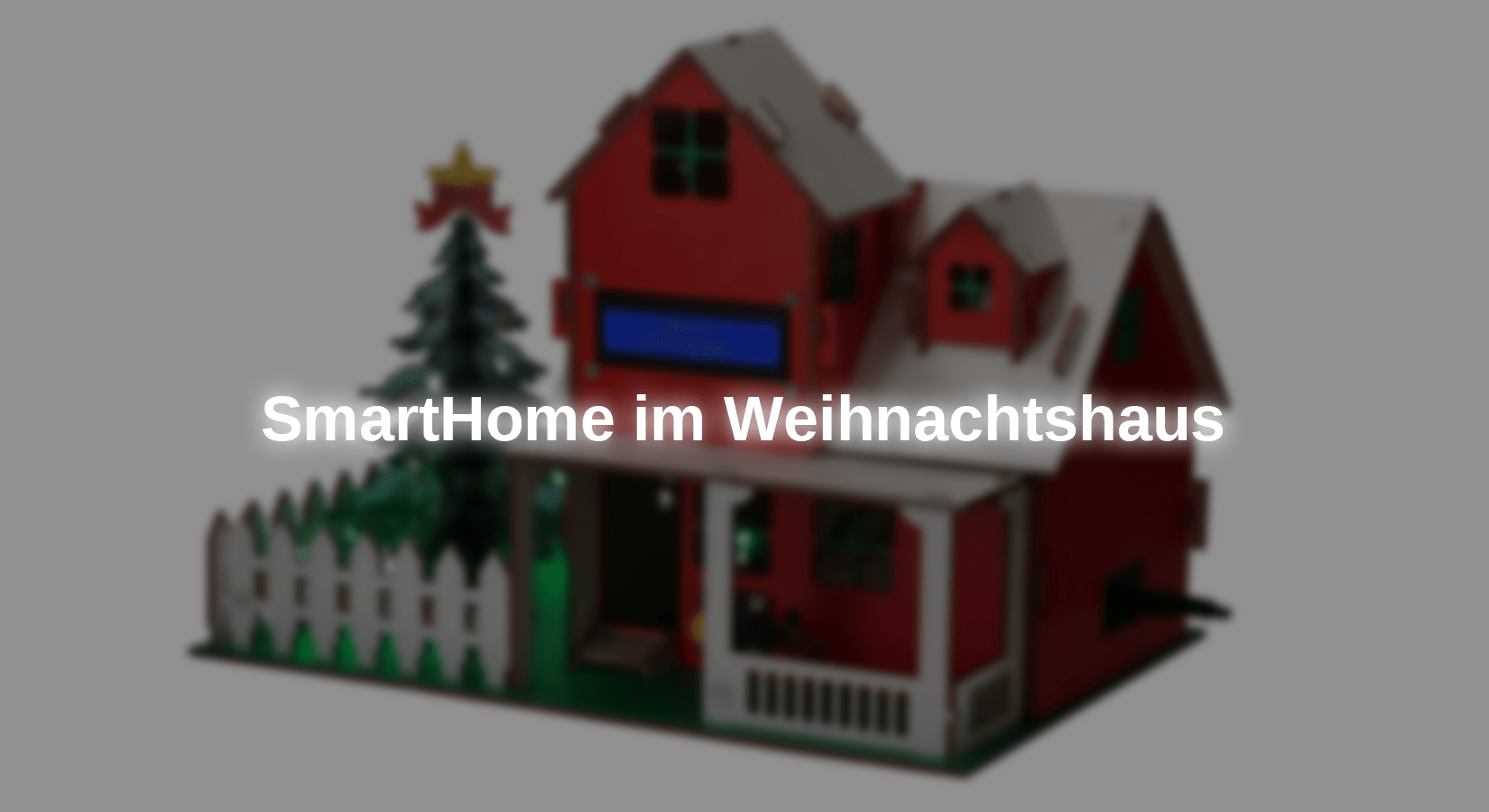
The Christmas House kit has the Nano Microcontroller only has limited functions, such as turning on the light using the button next to the door.
In this blog post, the set is to be transformed into a small smart home with WiFi function with a Christmas look using a D1 mini microcontroller.
Hardware
For implementation you need:
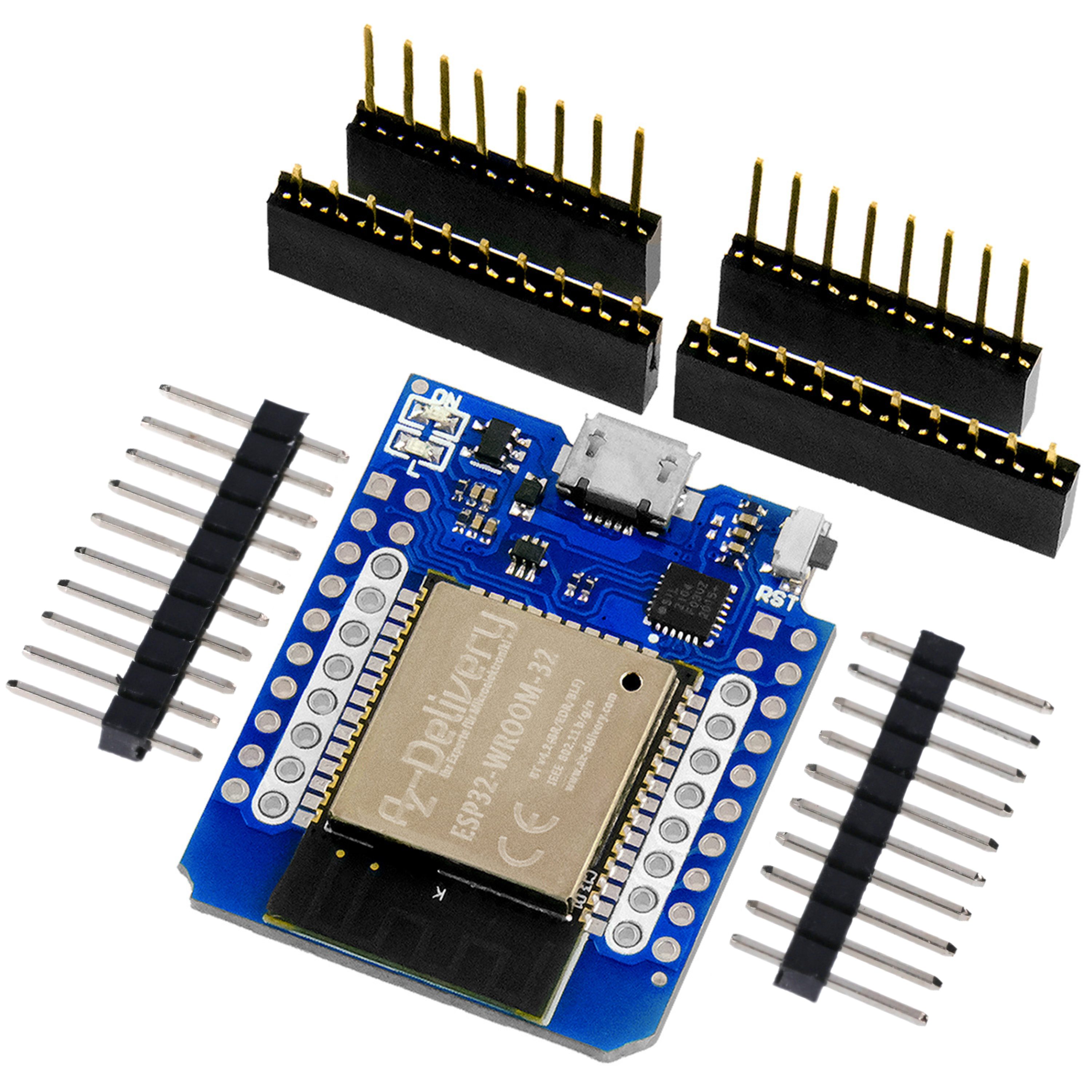
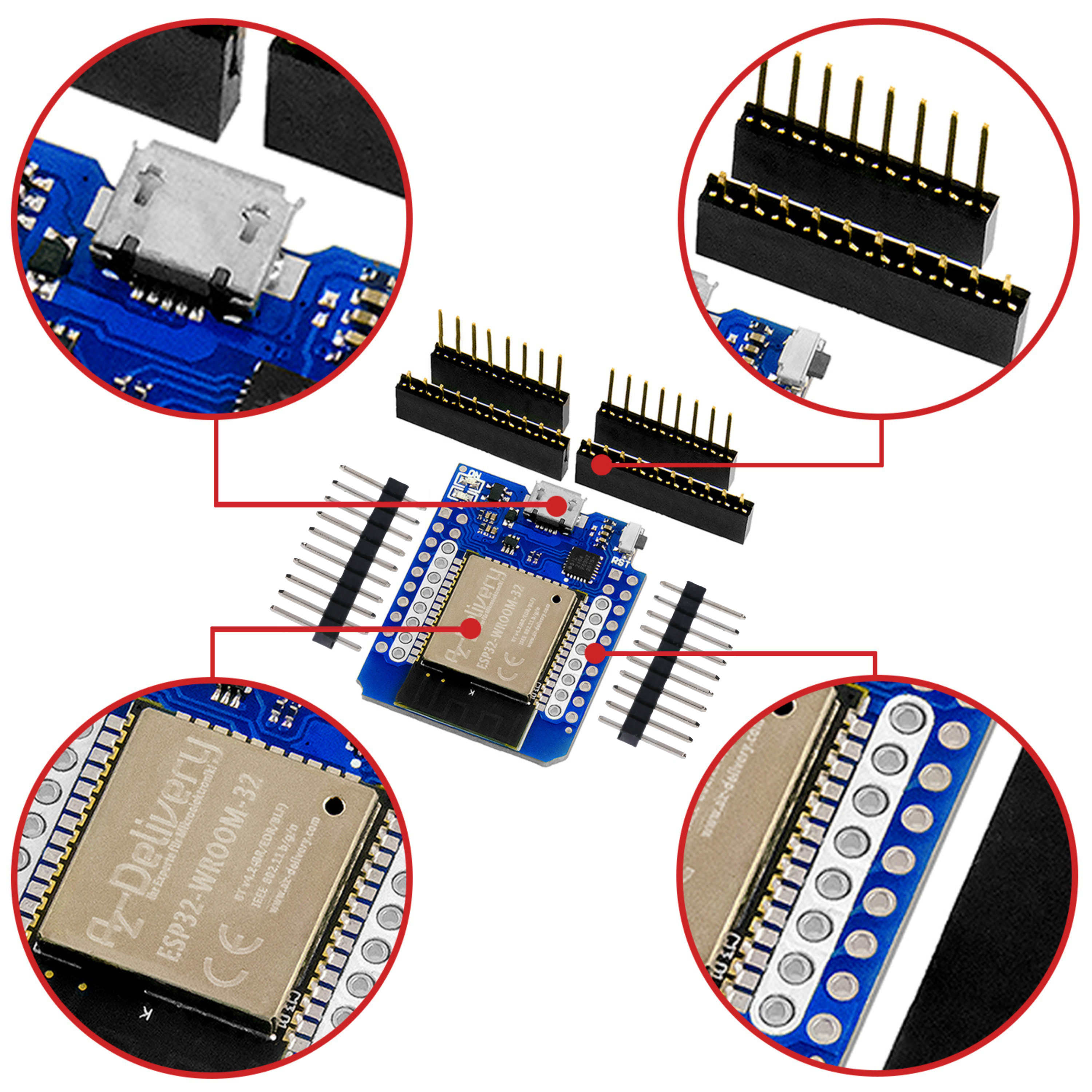
D1 mini ESP8266 (other versions also possible)
LED Christmas Tree kit (other versions also possible)
Connect the level converter to the D1mini using the silicone cables as follows:

Figure 1: Wiring D1mini
For the right side you can use a D1mini socket strip. If you have the appropriate tools, a crimped connection is of course the professional option.
After assembling the Christmas House kit according to the instructions, open the roof panel on the side of the battery box.
Now connect the relay and the DHT22 to the following connections on the Nano-Shields on.
|
DHT22 |
Shield |
relay |
Shield |
|
+ |
V11 |
- |
G7 |
|
OUT |
S11 |
+ |
(V 7) |
|
- |
G11 |
S |
S7 |
The already installed modules from the kit remain at the connections described in the instructions.
The WS2812 LED strip is not used in this blog, instead the LED Christmas tree is controlled via the relay. This can also be used by adjusting the number of LEDs.
Connect the LED tree as follows:
|
tree |
relay |
Shield |
|
VCC |
|
v |
|
GND |
NO |
|
|
|
COM |
G |

Figure 2: Connections for 5V power supply
Note:
If you supply the project with the relay and Christmas tree via an external voltage source (e.g. battery pack on the back), the additional components can cause the low dropout regulator to heat up significantly if there is a high current requirement. This can potentially lead to damage. If the current requirement is over 500mA, use a separate voltage source or a buck converter.
The relays and the DHT22 sensor can now be fixed in the house with double-sided adhesive tape, for example.
Continue to leave the rear portion of the roof open for the next steps.
Software
Since the Nano does not have a WLAN interface, the D1 mini is required. This person's sole task is to provide the web server for the control. The information is then sent to the UART interface Nano, which takes over the entire control of the components.
Since the two microcontrollers exchange data via the UART interface, the connection must be separated to flash a microcontroller.
Preparing Arduino IDE
If you are dealing with microcontrollers for the first time, you will still need to download the appropriate driver in order to be able to transfer the program to the board.
You can download the installation file for the appropriate driver here download.
For the D1 mini you need an additional package. To install it, copy the following link in the Arduino IDE under: File->Preferences->Additional boards manager URLs:
http://arduino.esp8266.com/stable/package_esp8266com_index.json
and install the ESP32 package in the Arduino IDE board management.
Furthermore, libraries are required to be able to control the LCD display, the LED module and DHT22 sensor:
You can install the libraries using the library management integrated in the Arduino IDE or download them as .zip using the link from Github and go to
Sketch > include Library > Add .zip Library …
incorporate.
Code Nano
Download the following program Nano:
|
#include <Wire.h> |
The complete code can here be downloaded.
Explanation:
At the beginning, the libraries are integrated and macros are created for the pin names of the connected modules.
This is followed by the initialization of the global variables and objects of the libraries.
The following method reads the sensor values and generates a json string from them, which is then sent to the D1mini via the serial interface (UART) so that the climate values can be displayed on the website. Since the LDR is only a resistor and therefore not calibrated at the factory, the actual limit values may vary. You can set this in the map() function. (900 below limit 0%; 100 upper limit 100%)
The following readLine() function forms a string from the individual characters received via the UART interface. The characters are added together here until a new line (\n) begins. The function is required for later data evaluation.
In setup(), the start methods of the libraries are called and the IO of the relay is configured as output.
The loop() starts by executing the handleSensors function every second. The time delay is implemented here with a comparison using the millis() function. This means the loop() is not blocked.
The string with the input from the web server is then evaluated and the LED is then set to the selected color, the text is shown on the display and finally the relay is set to the transmitted state.
Web server:
Now follows the html code which displays the web server:
|
|
Basically every html file is in one head and body divided. The configuration takes place in the head. This also includes the styling of the elements.
The body also contains the individual HTML elements such as input fields and buttons script Part which contains methods.
When you press a button, an assigned method is executed, which then transmits the input to the microcontroller.
However, the exact HTML functions and structure will not be discussed further here.
D1mini code
Download the full program (download at the end) on the D1mini:
|
#include <ESP8266WiFi.h> //Webserver html// |
The complete code can here be downloaded.
Explanation:
As in the code for the Nano, At the beginning, the libraries are integrated and objects and global variables are initialized.
The html code is also loaded into memory here. The entire html file has been omitted here for clarity.
The following methods are the callback functions of the web server, with which the entries are read and displayed when a change is made.
The readLine function basically corresponds to that in Nanoprogram used. The only difference is that the yield() function is used here, which allows functions to be executed in the background. This means there are no problems with the web server due to blocked background processes.
An access point is started in setup() so that you can connect directly to the D1mini and so no WiFi connection is necessary.
The callback methods are then assigned and the web server is started.
The loop() is again structured analogously to the Nano's program. Here the received string is not evaluated, but is sent directly to the server because it is already in json format.
After both microcontrollers have been flashed, plug the D1 mini assembly into the free UART pin header on the Nano-Shield. Make sure that it is connected correctly (you can use the GND pin as a reference in the above wiring.
After uploading, connect to the open “SmartHome” network. If you receive a notification that the network does not have Internet access, enable it Maintain connection for the network. Once connected to the network, open the browser on the connected device and enter the address 192.168.4.1. The following page will then be displayed where you can control the smart home.

Figure 3: Screenshot from the web server
Conclusion:
Now that you can control the individual parts of the project via a web server, you can still set up automations on the Nano program it in, for example to use the button as a control. However, make sure that no blocks (while or delay) are used in the loop() so as not to interrupt the web server's processing of the data.
With these automations and possibly additional sensors or modules, you can implement and expand your own small smart home project.
Have fun replicating it :)
For readers with advanced knowledge, it is also worth taking a look at the blog hack a tree, in which the Christmas tree kit is reprogrammed and you can program your own patterns.




1 comment
Sascha
Warum nicht auf den Nano verzichten? Nur den esp nehmen. Spart Kosten und Strom.